

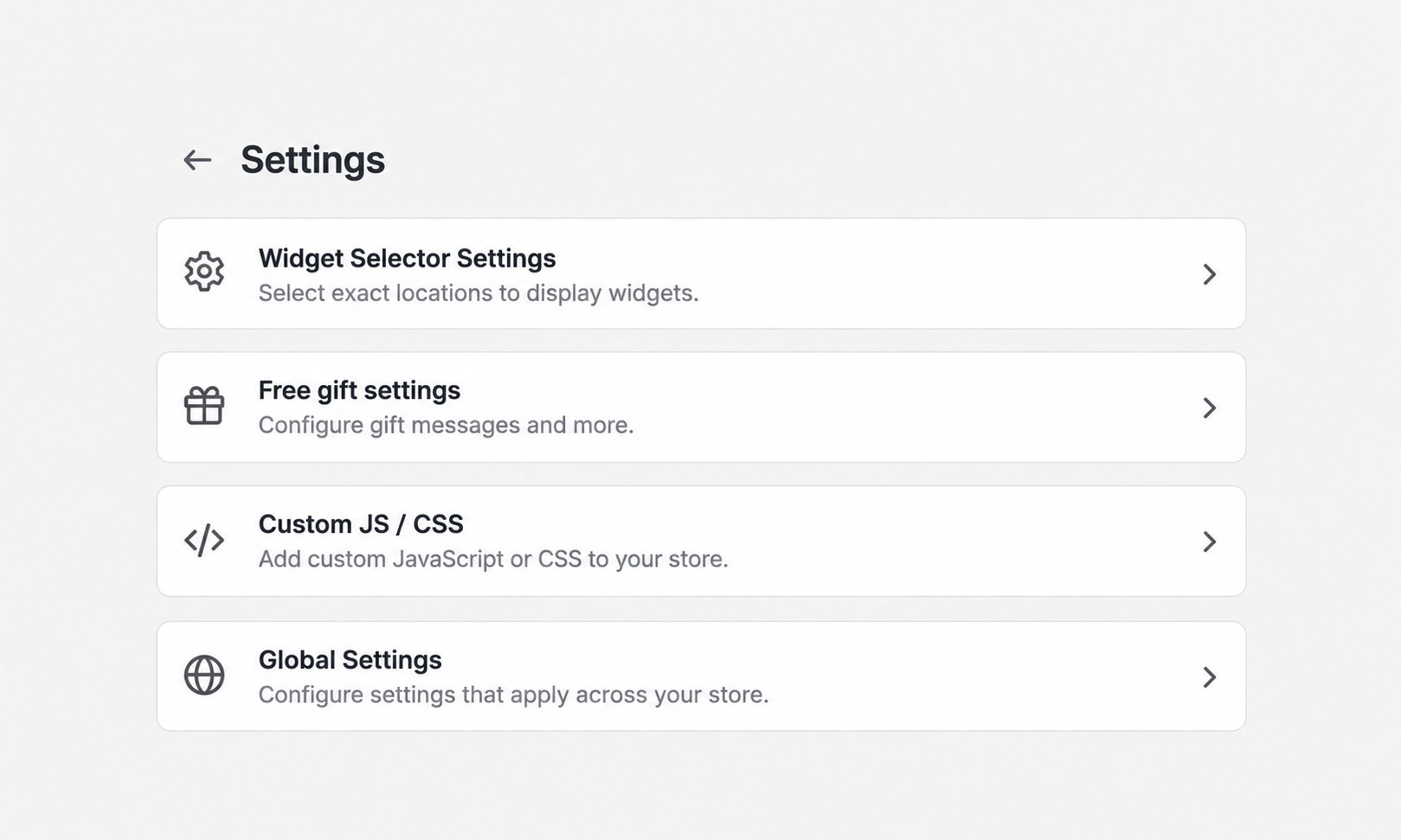
Use Show Discounted Price Crossout when customers should see the original price crossed out beside the discounted price before reaching checkout. AIOD settings areas used to configure storefront discount presentation

Enable strikethrough pricing

  1. In Shopify admin, open Apps > AIOD Discount & Gift.
  2. Create or open an eligible AIOD discount.
  3. Find Show Discounted Price Crossout.
  4. Enable Show strikethrough discounted pricing.
Use Always show strikethrough regardless of discount rules only when the price display should ignore whether the discount conditions currently match.

Add it to product pages

  1. Open 1. On product page.
  2. Click Add.
  3. In the Shopify theme editor, add Product Page Crossout to each required product template.
  4. Place the block below the theme’s Price element.
  5. Click Save.

Add it to collection pages

  1. Open 2. On collection page.
  2. Click Add.
  3. Add Collection Cards Crossout to the required collection pages.
  4. Click Save in the theme editor.
For homepage, search, or other collection-card locations, open 3. On rest of the pages (homepage, search, etc.) and use Contact support if the theme needs custom placement.

Verify the result

Open the storefront in a private window and test a product that satisfies the discount conditions. Check both its product page and a collection containing that product. Read Show Discounted Price Crossout for the complete shared-setting reference.